
February 17, 2026
Animoto Video Example |
- Sign in, stowe your other devices, log into a Chromebook, and go to WYAW (While You Are Waiting).
- Copyright and fair use. Seems boring? It's really fascinating!
- Renee Hobbs and Fair Use: Practical tool for students and teachers...
Document the Fair Use Reasoning Process (Source: Media Lab)
- Let's explore more......https://mediaeducationlab.com/copyright
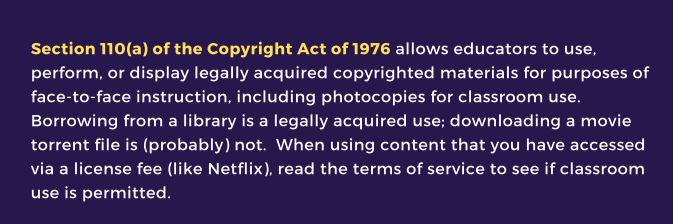
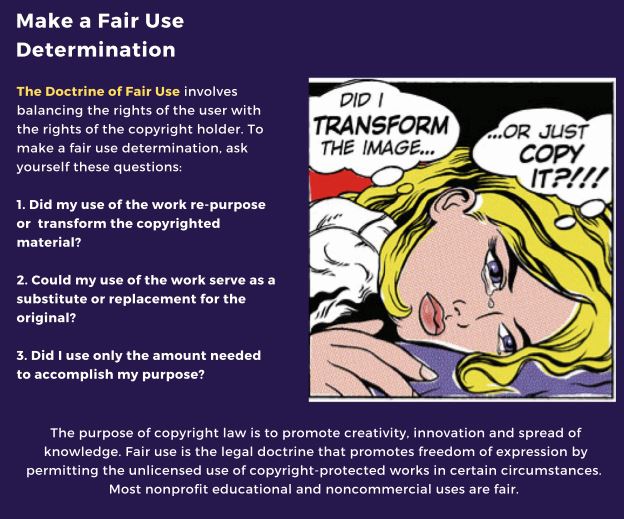
- Why is this important for NC Teachers and Students?
- State and National Standards for Teachers: Citizen and https://iste.org/standards/educators
2.3.c Teach Safe, Legal, Ethical Practices
- State and National Standards for Students: Digital Citizens https://iste.org/standards/students
1.2.c Intellectual Property
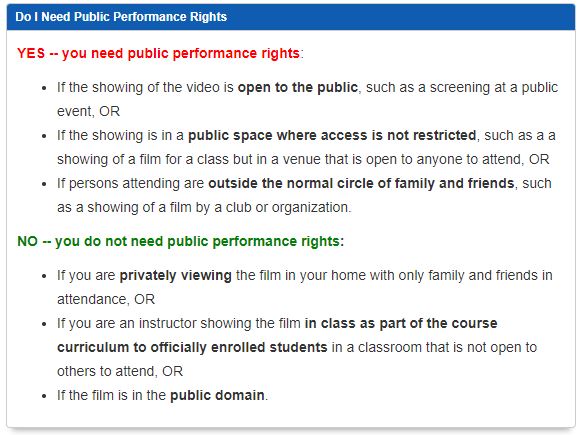
- COPYRIGHT: Movies in the Classroom
- What about using video in online classes or environments? If it's OK for online is it also OK for face-to-face?
https://uri.libguides.com/fairuse/examples/video
What about streaming movies from Disney Plus or Netflix?
https://guides.uflib.ufl.edu/copyright/video (Scroll down the page)
And finally, what about outside of a classroom for educational purposes?
Disney Fines School for Showing Lion King at PTA Fundraiser
Original Source: https://www.washingtonpost.com/nation/2020/02/04/disney-lion-king-school-fine/
- Creative Commons https://creativecommons.org/
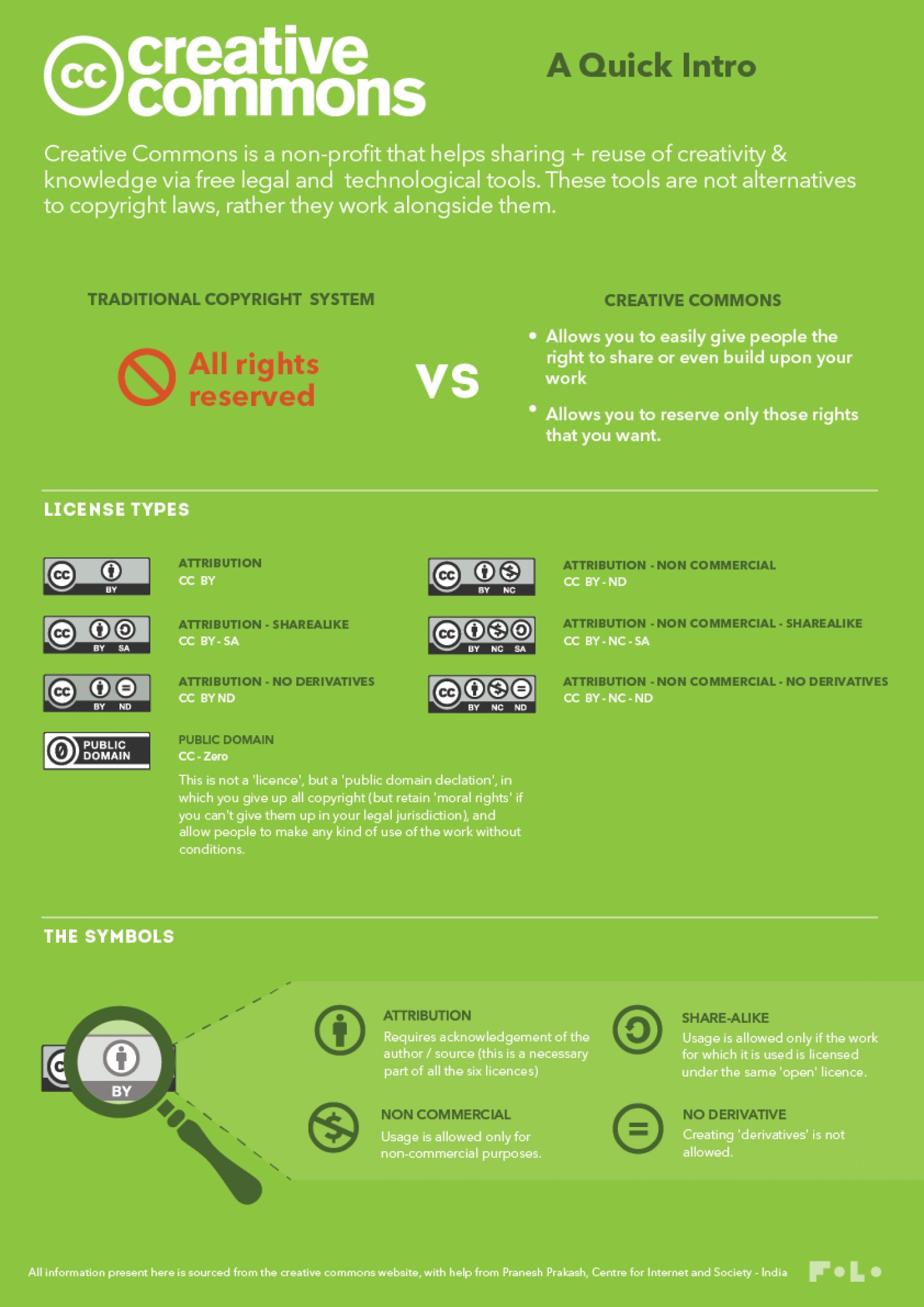
Want more information? https://creativecommons.org/about/cclicenses/
- Looking for media that has CC licences and that can or most likely can be used in accordance with Fair Use?
Look for wikimedia commons and/or CC licensed material or .gov files since, in general, government files are in the public domain (https://www.loc.gov/rr/scitech/selected-internet/imagesources.html) including NASA (see here for more resources from NASA for educators https://www.nasa.gov/audience/foreducators/index.html). However, some media and the logos are copyrighted but fall under fair use if you are using it for educational purposes.
- Some good copyright friendly websites for VISUALS (images and video):
- Pixabay (my fav),
- Wikimedia Commons,
- Pexels,
- Unsplash,
- Morguefile,
- Openverse
- Table Groups: Uses of video in the classroom. How are you seeing teachers (e.g., your CE) using video? Write four ideas on your lo-tech whiteboard.
- Let's make some video and start with a cloud-based tool that is considered a Web 2.0 tool (in the cloud).
Getting started with ANIMOTO: An online video creation tool - basic with some but not as much control as other tools.
- See these examples from our colleagues:
- Go to Pixabay https://pixabay.com/ and download any three images you like and one short video to your Chromebook files area. Or, you can go to this shared folder and download three images and one video: https://drive.google.com/drive/folders/1ADP06Uk-SglV-Ye5ABihmlYM_ebJSv3r?usp=sharing
- Next, go to https://animoto.com/ and create a free personal account with your class gmail address. Type your password carefully as you only enter it once. View it to make sure it's what you wish to use.
- We're going to do this first one together and then you'll have studio time to work on a new one on your own device. This is the one you'll create for Web 2.0 #2 Animoto video
- Once logged into Animoto, lick the "Create a video" button, and then "Start from Scratch" from the drop-down menu
- Upload your 3images and 1 video. Later, you can add media to the Media Library (see tab to the right of the screen).
- To start your video, add a title by clicking on the existing block at the bottom of the screen and adding text. You can also add an image in the background, if you wish
- Next, add a block with images, text, and/or video to your video project timeline/storyboard by clicking the + icon at the bottom of the screen. You will have a variety of layouts to choose from and once you make a selection, this will add a block in which you can add images, video, and/or text.
|
The Copyright Act at §110(1) (face to face teaching exemption) allows for the performance or display of video or film in a classroom where instruction takes place in [the] classroom with enrolled students physically present and the film is related to the curricular goals of the course. |
- Add at least 4 blocks with visuals in addition to your title
- Now, explore the soundtrack for your video. Suggestion: use the music Animoto offers (see music notes icon to choose at top of screen)
- ADVANCED ADVENTURERS:
You may also use one of these sound files from the free site, Incompetech (http://incompetech.com/music/royalty-free) Download it by right clicking and saving it to your files area and then uploading into Animoto. This is CC0 music.
Corncob.mp3 // Flutey Funk.mp3 // Somewhere Sunny.mp3 // Wallpaper.mp3
- Explore and play with uploading photos, video, uploading your own music *recall fair use*, adding captions and other text elements. Use the Document the Fair Use Reasoning Process form if you use commercial music.
- Now, explore the soundtrack for your video. Suggestion: use the music Animoto offers (see music notes icon to choose at top of screen)
- A text block at the start of your video with your title
- At least 4 or more images and/or video (NOTE: images alone are fine, no video is required)
- Music of your choice
- Must be between 30 seconds and 2:30 minutes in length
- You can continue editing but once you like what you see, copy the link and add it to your Google Site for Web 2.0 #2 tool either embedded or as a clickable link. (Save the rest of the profile for later, if you wish - DUE Feb 26th)
Your final video can be about anything you wish - your choice.
The following elements are required:
This tutorial walks you through from start to finish with the start from "Scratch" option and shows how to use different text and image/video layouts as well as how to add music.
Visuals: Pixabay, Pexels, Unsplash, Morguefile
Music
http://incompetech.com/music/royalty-free/music.html
Media Resources from Penn State
http://mediacommons.psu.edu/free-media-library/
OER Commons: Free Digital Library and Network of Educational Resources
https://www.oercommons.org/
Music
http://incompetech.com/music/royalty-free/music.html
Speeches
https://archive.org/details/Greatest_Speeches_of_the_20th_Century
All Media, mostly Images
https://commons.wikimedia.org/wiki/Main_Page
Wikipedia:Public domain image resources
https://en.wikipedia.org/wiki/Wikipedia:Public_domain_image_resources
Public Domain Image Websites
https://99designs.com/blog/resources/public-domain-image-resources/
Access some fabulous visual and audio media collections at the Library of Congress (some but not all are in the Public Domain) https://www.loc.gov/library/libarch-digital.html