
April 21, 2026
Teachers & Students: Imagining the Future of Technology |
- Get a Chromebook and go to WYAW.
- Some fabulous digital stories from your peers. Confetti compliments.......
- Chrome Extensions: To continue our exploration of web 2.0 tools related to collections or suites of tools, let's look at tools you can embed in your Chrome browser. These are helper apps that you can add directly into your browser. Check some of these out by installing them into your Chrome browser. You must install the two required and one other that you choose and pin them to your browser bar.
- Go to the Chrome Web Store and search through the options. Find one you like.
- Click on the link to the extension
- Click the blue "Add to Chrome" button and then again the "Add extension"
- Manage your extensions using the icon in the top right corner
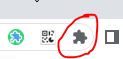
- Find your extension and choose to pin it so you can access from your browser bar
- INSTALL: Customize your YouTube viewing experience for your student with https://unhook.app/ (Choose Chrome option)
- Better Campus (formerly Better Canvas)
https://chromewebstore.google.com/detail/bettercampus-prev-betterc/cndibmoanboadcifjkjbdpjgfedanolh
- Screencastify - screen recorder (Dr. Perkins' fav)
https://chrome.google.com/webstore/detail/screencastify-screen-vide/mmeijimgabbpbgpdklnllpncmdofkcpn
- One Click Extensions Manager
https://chromewebstore.google.com/detail/one-click-extensions-mana/pbgjpgbpljobkekbhnnmlikbbfhbhmem
- Link Clump+
https://chromewebstore.google.com/detail/linkclump-plus/ainlglbojoodfdbndbfofojhmjbmelmm
- Go Full Page
https://chromewebstore.google.com/detail/gofullpage-full-page-scre/fdpohaocaechififmbbbbbknoalclacl
- Find other Extensions at: https://chrome.google.com/webstore/category/extensions or use the tiny rainbow icon in the top left of your browser bar
- Spheros and the app on your phone - Three ways to control the spherical robot (Drive, Draw, Code/Program)
- Open Sphero Edu on your tablet
- We are going to add coding to our Sphero skills.
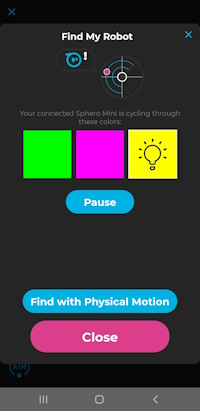
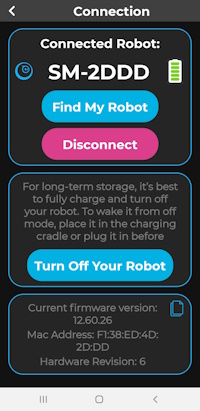
FIRST always calibrate your device with the AIM option. - Find and pair your device with your Sphero. Make sure to choose the correct Sphero and not someone else's
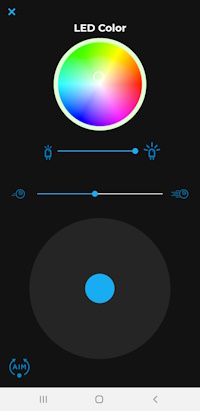
- Choose Drive in the bottom left corner
- Calibrate the Sphero by using Aim to aim the light on the Sphero toward you
- At the end of your Sphero session, disconnect and stow your device in the egg carton
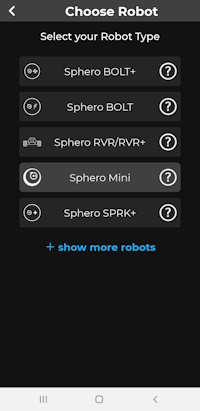
- Next, log into Sphero with your class code: FBCX7A
- Canva Walkthrough: https://canva.link/qmmngvdn7sp1w87
- Explore the DRAW program option.
- Run the programs for the class from the SpheroEdu class site
- Using the handout, create and run the example programs and then create and share one of your own.
AFTER THAT.......
- GROUP: Finish your Goosechase missions
- MORE CODING: Blockly coding game, Octostudio, Sphero block coding
- INDEPENDENT: Add extensions to your Chrome profile
- EXPLORE: Check out
RESOURCES O' THE DAY:
A Great Educational Coding Website
https://www.codeforlife.education/
Top Coding Websites for Kids
https://codakid.com/top-21-kids-coding-websites-of-all-time/
10 Free Coding Games Websites for Teaching Programming Skills
https://childhood101.com/coding-for-kids/
Hour of Code
https://hourofcode.com/us
Why teach robotics in schools?
https://blog.robotiq.com/7-reasons-to-teach-robotics-at-school
Computational Thinking Competencies
https://www.iste.org/standards/computational-thinking
Computational Thinking Teacher Resources (RICH RESOURCE)
https://id.iste.org/docs/ct-documents/ct-teacher-resources_2ed-pdf.pdf?sfvrsn=2
A Comprehensive List of Coding Resources
https://mommypoppins.com/coding-kids-free-websites-teach-learn-programming
Videos on Computational Thinking and Coding:
Computational thinking: A digital age skill for everyone
https://www.youtube.com/watch?v=VFcUgSYyRPg&t=1s
Other Videos from ISTE
https://www.youtube.com/user/istevideos/search?query=computational+thinking
A Fabulous and Free Coding Website for Kids from MIT - Scratch
https://scratch.mit.edu/projects/editor/?tutorial=getStarted
Sphero
Overview of Sphero for Teachers from the Company
https://cdn.shopify.com/s/files/1/0306/6419/6141/files/SpheroEdu-k12-teacher-resource-guide.pdf?v=1585146735
Teacher's Guide
https://dmmedia.sphero.com/email-marketing/Sphero-Edu/SpheroEdu-k12-teacher-resource-guide-v1_updated050818.pdf
A list of Sphero Challenges from a classroom teacher in Georgia